Preface
Well… it probably wasn’t entirely accurate to say in the first post that I wouldn’t use an engine. It would have been more precise to say that I wouldn’t use a complex engine, or that the engine itself wouldn’t be the priority.
Once I actually started the project, I realized I needed something to handle the basics: window management, rendering, asset loading, and so on. Otherwise, the engine code would have ended up mixed together with the voxel code in a spaghetti mess, making it harder for anyone reading the code (or this blog) to understand what does what, and much harder to expand the project in the future.
Therefore, I decided to write an engine as simple as possible while still being reasonably efficient and following good design practices.
The engine itself can serve as a template for other projects and be modified as needed. The repository can be found at simpleengine and the repository for the voxel project with the integrated engine is at voxeljourney.
Engine overview
The engine is written in C++23, with OpenGL 4.6 for rendering and GLFW for window and input management. To handle dependencies and build the project, it uses CMake, Makefile, and Vcpkg.
It is divided into four main parts: Core, Render, Assets, and Scene. I avoided including systems like audio, physics, debugging tools, scripting, etc., as I wanted only the minimum to start with voxels and expand it as needed.
Engine architecture
Core
The Core is the central part of the engine. It is responsible for initializing and shutting down the different subsystems and maintaining the game loop. It also includes window management, input, events, and configuration.
“A game loop runs continuously during gameplay. Each turn of the loop, also called a Frame, it processes user input without blocking, updates the game state, and renders the game. It tracks the passage of time to control the rate of gameplay.” Game Loop
The configuration file config.ini is read at startup to load various runtime options such as the application name, window resolution, mouse options, movement speed, or to change existing ones without recompiling the project.
Scene
In games, the term “scene” can refer to the game menu, different levels of a game, or, in a survival game, the entire world at once. It contains the entities in the world, processes their logic, gathers light data, and calls the renderer to draw them on the screen.
These entities can be things like the player, enemies, trees, the sun, interactable objects, etc. In the case of a voxel game, the scene contains the voxels/cubes that are generated and destroyed dynamically as the player moves through the world.
For the voxel project, I don’t need a full ECS system for now, so the scene is quite simple and consists of:
- Player: Controls the camera and movement. For now, it has no physics or interaction logic, it just moves through the world and looks around without a visible 3D model.
- Sun: A directional light that illuminates the scene.
- Sky: A single-color background for the scene that contains the sun. It could be expanded to have a dynamic sky with clouds, stars, etc.
- Renderables: Entities that are drawn on the screen and the player can see. A Renderable is divided into:
- Mesh: The geometry of the object, represented by vertices and indices.
- Material: The appearance of the object.
- Transform: The position, rotation, and scale of the object in the world.
A mesh can be shared by multiple Renderables, for example, a voxel cube can be used for all the voxels in the world, while the material can vary depending on the type of voxel (grass, dirt, stone, etc.) or even within the same type to add visual variety. It can also come from an imported 3D model, such as a tree or a rock.
Render
The renderer is responsible for drawing the scene to the screen; otherwise, we would just see an empty window.
The goal of this post is not to explain in detail how OpenGL works; for that, I highly recommend LearnOpenGL. However, I want to give a general idea of how the rendering logic is structured, so I will explain it at a high level and leave that link for those who want to delve into the details.
Each frame, the Renderer receives the Renderables from the scene and prepares them for drawing. The Renderer groups them by Mesh and Material to minimize GPU state changes (CPU batching), sort them by opaques and transparents, and then uses instanced rendering to draw multiple copies of the same geometry with different transforms and materials. This way, instead of making a draw call for each Renderable, hundreds or thousands can be drawn with a single call, depending on the configured batch size, which significantly improves performance.
We can imagine, for example, a field of grass, where each blade of grass is a Renderable with the same geometry and material but with different positions and rotations. Instead of making a draw call for each blade, they can all be drawn with a single call using instanced rendering.
This type of renderer is commonly referred to as a forward renderer with instancing. It is well suited for simple scenes with a limited number of lights, which is the case for this project. Additionally, it is easier to implement and understand compared to more advanced rasterization techniques such as forward+, deferred rendering, or clustered rendering.
Another fundamentally different approach is ray tracing, which does not rely on rasterization. Instead, it simulates the physical behavior of light by tracing rays as they interact with objects in the scene.
For a good explanation of the diferent rendering techniques, I recommend this blog by Angelo Pesce.
The renderer also has a Frame UBO (Uniform Buffer Object) to send common data that affects all Renderables, such as the camera’s view/projection matrix or light information (Sun or ambient light). This allows the shader to access this information without needing to send it each time a Renderable is drawn, which improves performance and simplifies the shader.
Another optimization I implemented is calculating the model and normal matrix on the CPU, which avoids having to do it in the shader for each vertex, which can be costly in terms of performance, especially if there are many vertices.
Finally, before a Renderable is submitted for that frame, a basic frustum culling step is performed. In simple terms, this means discarding those Renderables that are not within the camera’s field of view, which reduces the amount of geometry sent to the GPU and improves performance. To do this, I use a property within the Mesh called AABB (Axis-Aligned Bounding Box), which we can imagine as a box that encloses all the geometry of the mesh and aligns with the world’s axes. If that box does not intersect with the camera’s frustum, then the Renderable is not drawn.
Assets
The asset system is responsible for loading and managing the game’s resources, such as shaders, textures, models, and materials. It is important to have an efficient asset system to avoid loading the same resource multiple times and to facilitate resource management in the project.
All assets derive from the base Asset interface, which has a path. The asset manager is responsible for loading and caching assets to avoid duplicate loads. They are stored in an unordered_map using a UUID as the key and a shared_ptr to the asset as the value, and are returned as an AssetHandle, which is a lightweight, type-safe reference.
This way, the code that uses the assets does not have to worry about memory management or concrete types; it simply uses the handle to access them. If the asset is not loaded or changes, the asset manager automatically loads it and caches it for future references.
Types of assets:
- Shader: Loads the shader source code from a file, compiles it, and links it into a shader program that can be used to draw Renderables. Currently, it only supports simple shaders with vertex and fragment shaders, but it could be expanded to support geometry shaders, compute shaders, etc.
- Texture: Creates an OpenGL texture ID and configures it with the appropriate parameters for use in the shader. Currently, it only supports 2D textures, but it could be expanded to support cubemaps, texture arrays, etc. It automatically generates mipmaps to reduce aliasing and improve performance at a distance and applies Anisotropic filtering to improve texture quality at oblique angles (avoiding the Moiré effect).
- Model: Loads the model’s geometry into a Mesh and the associated textures and shaders into a Material. Currently, it only supports static models, but it could be expanded to support animations, morph targets, etc.
- Material: Maintains a reference to a shader and its associated textures, as well as the render state, such as whether it is transparent or not, or the color if there are no textures.
Conclusion
So well, that’s all for today’s post! I hope this gives you a clear overview of the engine’s architecture and design goals. Feel free to explore the code and ask any questions you may have.
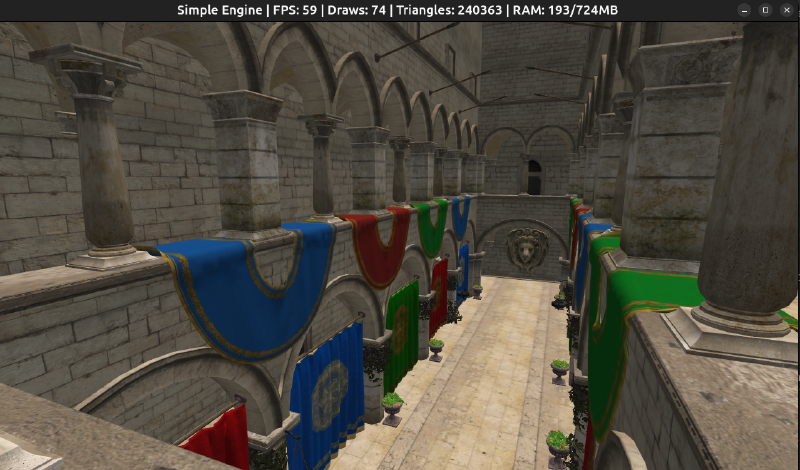
Let’s wrap up with a screenshot of the engine rendering the “Sponza” model, a classic 3D scene commonly used for testing rendering techniques. Tested on an i7 laptop without a dedicated GPU.
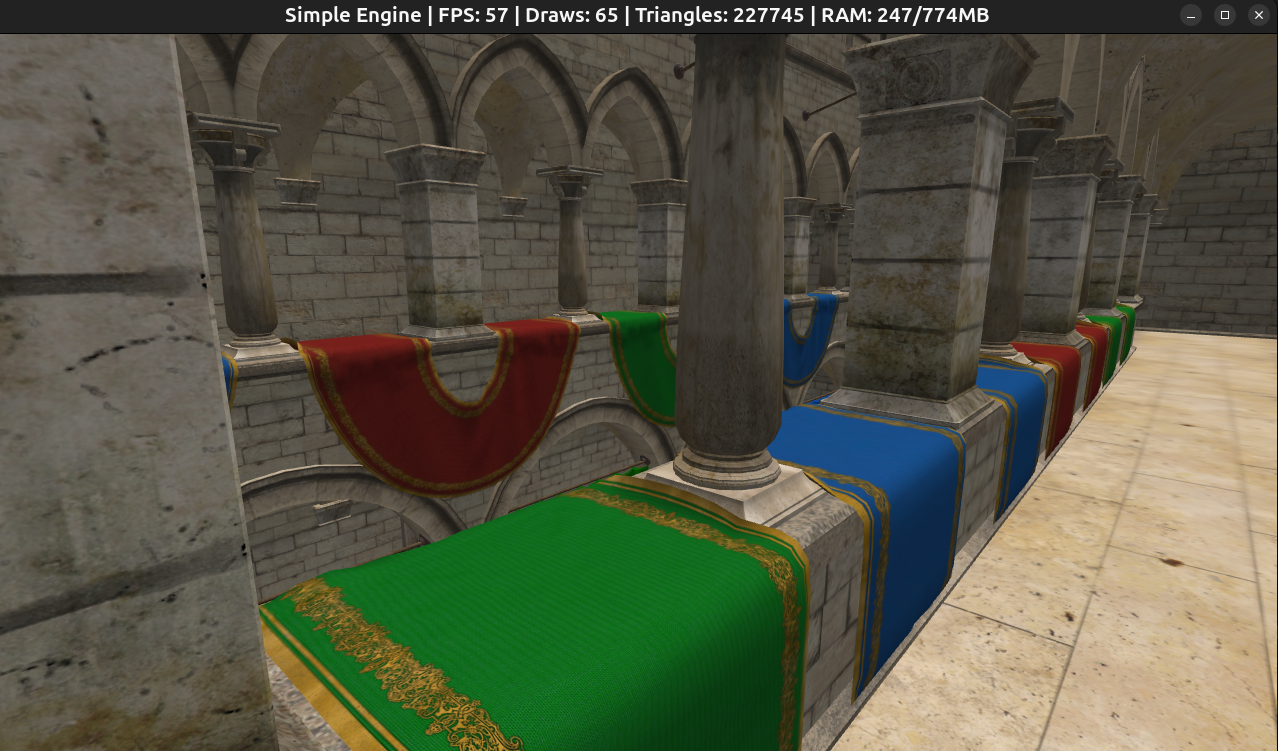 Sponza GLTF, loads in ~5 seconds
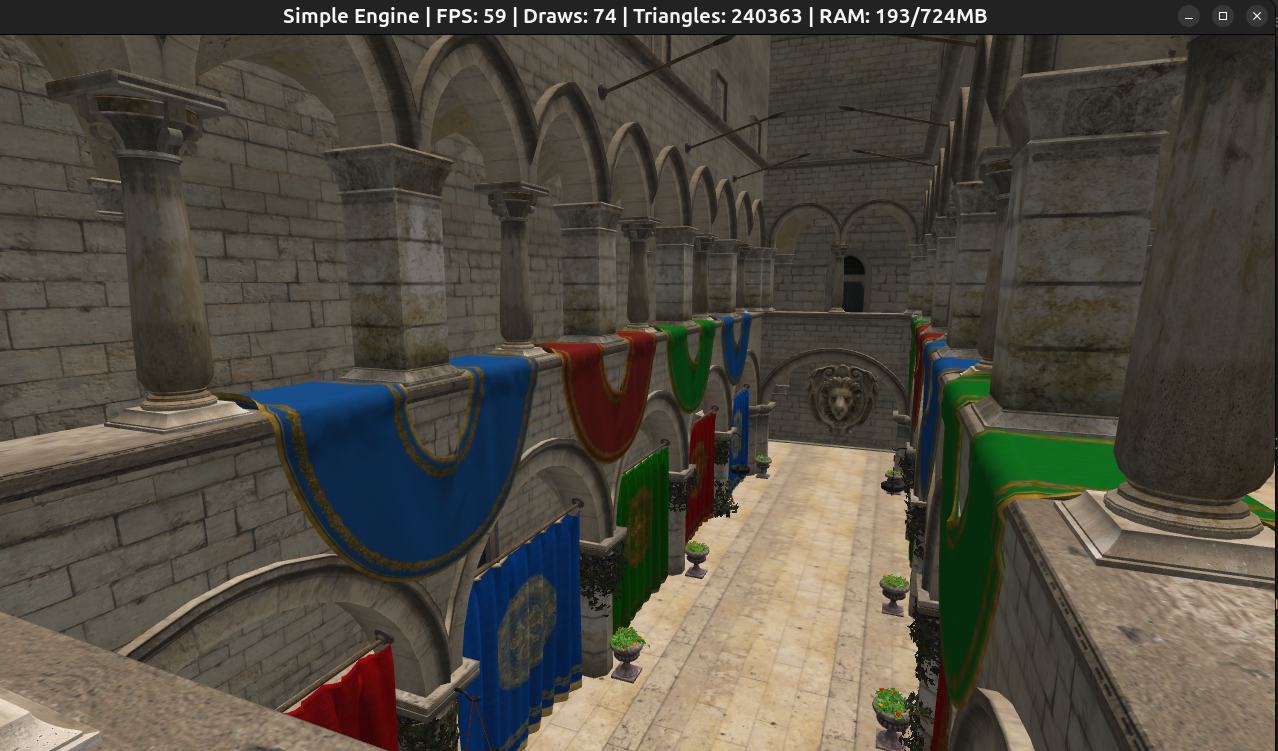 Sponza GLB, loads in ~3 seconds and uses less memory than the GLTF version
In the next post, I will start working on the voxel engine itself, so stay tuned!